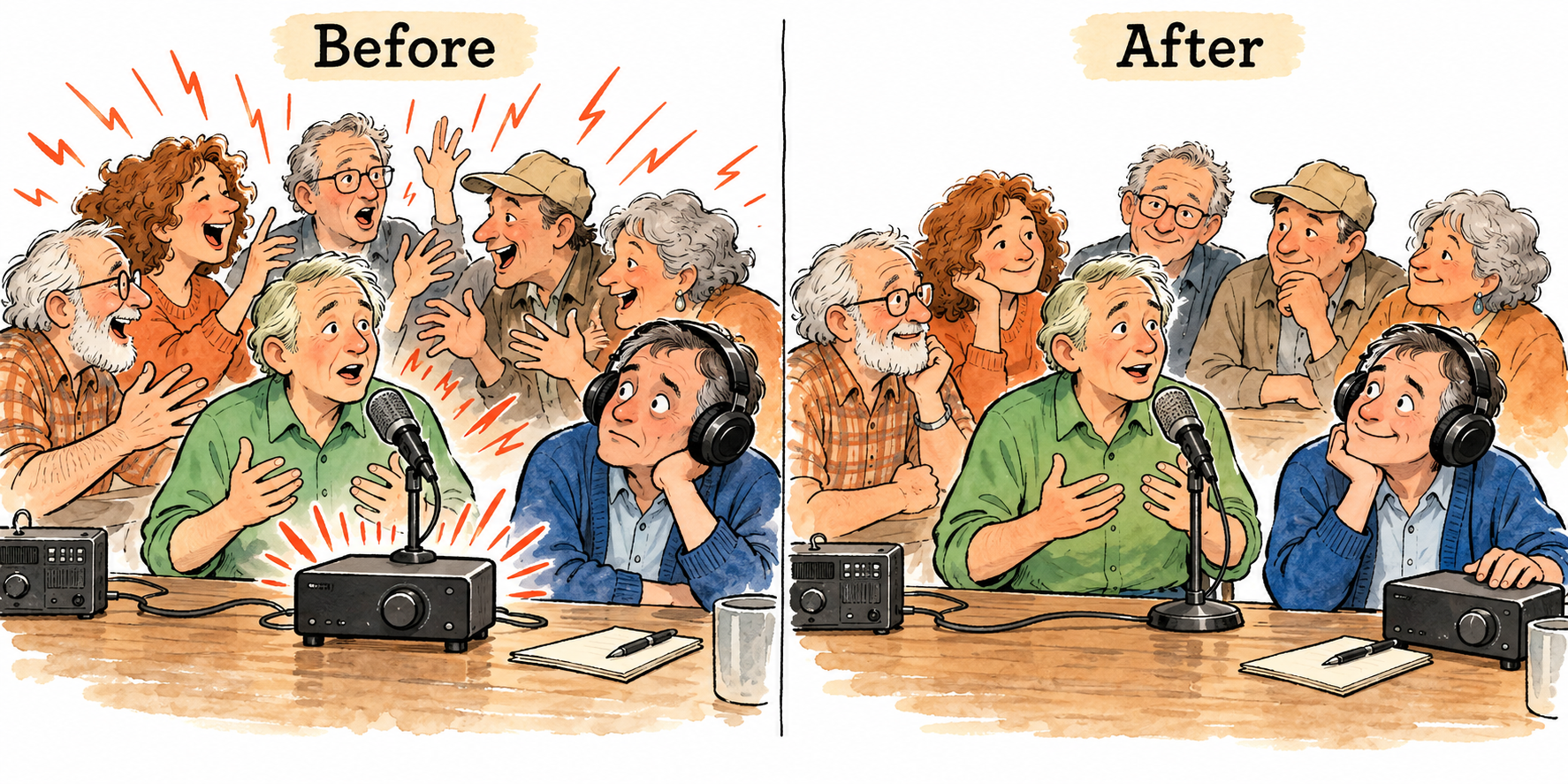
Try one change at a time. Listen to several sentences. Keep the change if the words are easier to understand or listening is less tiring. Otherwise, undo it and move on.

1 Tune the voice and compare antennas
Tune the station accurately in USB or LSB and set comfortable volume. On the MP, select MAIN or SUB. Note your current settings. Center SHIFT and switch NB, DNR, DNF, NOTCH, CONTOUR and VC-TUNE off for the first comparison.
Start with WIDTH around 2.7 to 3.0 kHz. Select the 3 kHz roofing filter on the MP or FTDX10. The FT710 has no selectable crystal roofing filter, so skip that selection.
If you have several antennas, compare them on the same station before adding processing. On the MP, touch ANT and choose a connected antenna. With one antenna, carry on. Keep the antenna that gives the clearest words, even if its meter reading is lower. The MP receive-only antenna arrangement is explained with step 10.

2 Try IPO before adding amplification
The choices are IPO, AMP1 and AMP2. IPO bypasses the RF preamplifier. AMP1 and AMP2 add amplification, raising incoming noise along with the wanted signal. Yaesu lists AMP1 as the normal setting; use IPO first for this comparison.
- Select IPO. Start with RF gain fully clockwise and RF/SQL assigned to RF gain. Listen to the voice, not the meter.
- If you can follow the words, gently turn RF gain counterclockwise. Keep the adjustment if listening improves; restore it if words disappear.
- If you cannot follow the voice, restore RF gain and compare AMP1, then AMP2. Adjust speaker volume for a comfortable comparison. Keep the setting that gives the clearest speech.
- In a high background-noise environment, try ATT at 6 dB. Compare off–on–off. Try 12 or 18 dB only if the first change helps. Keep the smallest useful amount. If the voice disappears with the noise, reduce ATT or switch it off.
ATT reduces all incoming signals. It gives the receiver more headroom and helps when excessive input is degrading reception. It does not selectively remove noise. After filtering, revisit gain and ATT once more.
3 Check VC-TUNE (101 series)
On the FTDX101MP, try VC-TUNE now if strong unwanted signals are disturbing reception: go to step 10, then return to step 4. FTDX10 and FT710 users continue to step 4.
Shape the listening window
4 Set WIDTH and SHIFT together
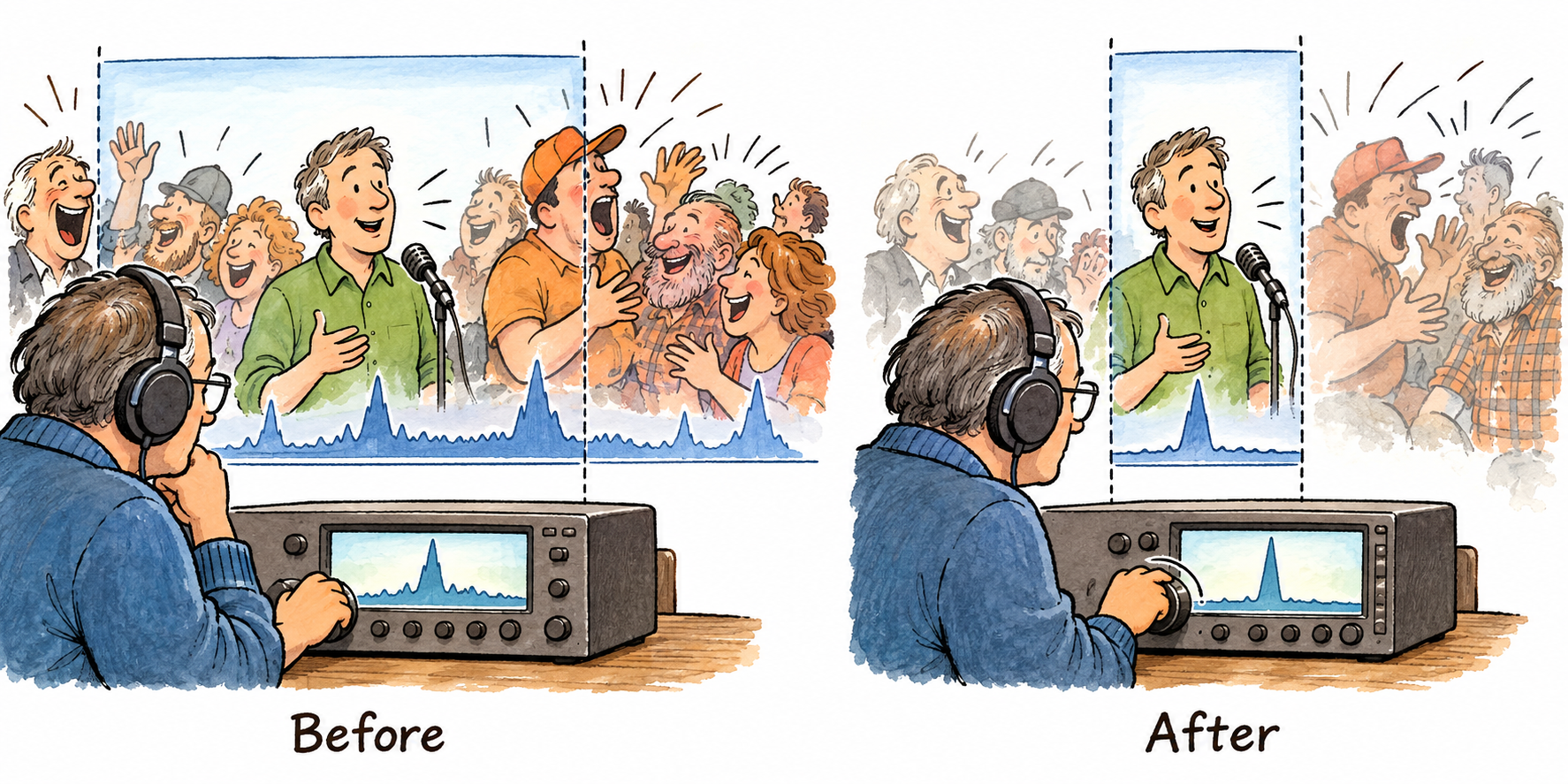
What they do. WIDTH narrows or widens the IF listening window. SHIFT moves that window without retuning the station.
- Turn the outer WIDTH knob counterclockwise slowly while the person speaks. Try moving from about 2.8 kHz toward 2.4 kHz.
- When speech becomes muffled or loses consonants, widen it slightly. Stop where the interfering sound falls but the wanted words remain clear.
- Move the inner SHIFT knob a little one way, through center, and the other way. Keep the position that reduces the intruder while preserving the voice. Alternate small WIDTH and SHIFT adjustments.
With an adjacent station, move the window away from the unwanted energy. Use the filter display and your ears; USB and LSB place higher RF frequencies at different audible pitches.
With general hiss, try trimming the higher-audio end first. If letters become harder to identify, open it back up. Do not chase complete silence.
5 Remove a whistle with NOTCH
What it does. NOTCH cuts a small region inside the listening window. It removes a tone there, together with speech energy in the same region.
- Press NOTCH. Slowly turn the inner NOTCH knob until the whistle is weakest.
- Move slightly past that point, then return. Switch NOTCH off and on to hear the difference.
- Keep it if the whistle falls and the voice is easier to follow. If the voice sounds hollow but the whistle remains, reposition the notch. With plain hiss and no concentrated tone, leave it off.
For several whistles, compare DNF, the automatic notch. Start with the manual IF notch for a very strong carrier. Try narrow versus wide IF NOTCH WIDTH in the RX DSP menu to see which removes the tone with less damage to speech.

6 Shape the voice with CONTOUR
What it does. CONTOUR makes a gentler dip or boost across part of the passband. The front-panel knob moves its center. Menu settings control its depth and width.
- Enable CONT and slowly turn the outer CONT/APF knob while the person speaks. Leave depth and width unchanged for this first sweep.
- With a negative contour level, you are moving a dip. For harsh high audio, start there and sweep downward. For intrusive sound in the middle, try the center of the passband.
- Move slightly beyond a promising position, return, then compare CONT off and on. Keep the position that makes the words stand out. Undo it if speech becomes smooth but less distinct.
For deeper adjustment, use the contour exercise in Adjust cutoffs and contour settings.

Finish the combination
7 Try DNR on remaining background noise
- Press DNR. Press and hold DNR, then turn MULTI to compare settings. Listen to several phrases at each setting.
- Compare promising settings with DNR off. Choose by clear words and listening comfort. If syllables smear or consonants disappear, try another setting or switch it off. The highest number is not automatically the best.
How it works: DNR uses digital processing to reduce background noise within the received signal rather than simply narrowing the listening window. Its processing also changes speech, so check the words as well as the quieter background.

8 Add NB for repeated clicks or pulses
Press NB, then press and hold NB and adjust its level with MULTI. Use enough to reduce the clicks, then compare off and on. Reduce it or switch it off if speech becomes rough. With no pulses, leave NB off.
9 Check each part of the combination
Switch each enabled assist off and back on individually, leaving the others unchanged. Keep each one that earns its place. Revisit WIDTH: the other improvements may let you widen it for more natural speech. Then recheck gain and ATT.
Try these combinations on a difficult station
Hiss around a readable voice. Try moderate WIDTH narrowing, then CONTOUR and DNR separately. Keep the useful changes. Leave NOTCH and NB off unless a whistle or pulses appear.
Bleed over in the middle. After WIDTH and SHIFT, sweep a negative contour dip through the remaining passband, including its center. Stop where enough useful speech remains to read the station. Compare off and on.
Different problems at each end. Trim one end with WIDTH, SHIFT or an audio cutoff. Use CONTOUR on a troublesome region elsewhere in the remaining window. If a concentrated whistle is present, place NOTCH on it and try CONTOUR separately on the broader unwanted sound.
A weak voice in a hot noise background. Return to IPO and compare a small amount of ATT. Reset speaker volume for comfort. Keep ATT if words become clearer or listening is easier without losing words. Otherwise, turn it off and continue with the filters.
Repeat the comparison after a change of station or band. These are listening exercises: try the change, keep the benefit, undo the loss.
Adjust cutoffs and contour settings
Compare gentle and steep audio roll-off
Press FUNC, then RADIO SETTING and MODE SSB. Note LCUT FREQ, LCUT SLOPE, HCUT FREQ and HCUT SLOPE before changing them. Use your model’s setting control and save or exit with FUNC.
LCUT removes low audio below its cutoff; HCUT removes high audio above its cutoff. The cutoff sets where the roll-off occurs. The slope sets how rapidly it falls beyond that point: 6 dB/oct is gentler and 18 dB/oct is steeper. An octave is a doubling or halving of frequency.
- On a voice with hiss, keep the high-cut frequency fixed and compare HCUT SLOPE at 6 and 18 dB/oct. Listen to several phrases, then return to the better setting.
- Next, keep the slope fixed and try a high-cut frequency near 2700 Hz. Restore the earlier frequency if consonants or call-sign letters disappear.
- On boomy speech, try moving LCUT FREQ from 100 toward 200 Hz. Then compare the two low-cut slopes separately. Restore the previous value if the voice becomes thin or tiring.
- Recheck the full combination. If changing the audio cutoffs makes little difference, the IF window may already have removed that part of the signal.
Make the contour dip shallow or deep
On the MP, press FUNC, then OPERATION SETTING, RX DSP and CONTOUR LEVEL. Adjust with MULTI, then save and exit with FUNC. Use the corresponding RX DSP controls on the other models.
A negative level makes a dip. Closer to zero is shallower; more negative is deeper. Zero adds no gain change. Positive levels produce a boost. The MP range is -40 through 0 to +20; its factory setting is -15.
- Find a useful contour center with the front-panel knob. Leave the center and width fixed, then compare a shallow level such as -5 with -15.
- Keep the depth that improves the words. If speech disappears with the unwanted sound, return to the shallower dip.
- Change CONTOUR WIDTH separately to compare a broader or narrower affected region. Then refine the center once more.
- To try emphasis instead of cutting, compare a small positive level. Keep it only if useful speech stands out; it also boosts noise in that region.
Contour depth and width shape a region inside the passband. They are separate from the 6 or 18 dB/oct slopes at the low and high audio cutoffs.
Practise and listen back
Use strong medium and weak stations
Start with a strong readable voice so you can hear when filtering damages speech. Then repeat the sequence on a medium station and a weak station. Include noisy examples. Work through the controls, skipping those whose problem is absent.
Keep a useful change as you add the next one. At the end, remove each change briefly to check its contribution. If the combination gets worse, return to your starting settings and build it again.
Record what you change
- Place a recorder near the speaker or use a suitable receiver audio connection. Keep microphone position and recording level unchanged. Avoid clipping and disable automatic recording gain if possible.
- Record a baseline. Say the antenna and important settings aloud. Announce each change, record several phrases, then return to the previous setting and record again.
- On playback, note words or call-sign letters understood and rate listening effort separately. Prefer a change that preserves words while reducing effort, or lets you copy more.
- Repeat the off–on–off test. Use short comparisons to limit fading effects. For a fairer listening check, ask someone to label clips without revealing the settings until after you judge them.
Use playback to check your impression. Different spoken passages and changing propagation prevent a perfect comparison. A recording taken before the receiver processing will not capture all filter changes.
Listening record
Station and band __________________ Antenna _________________________
Control and settings ________________ Words before and after ______________
Listening effort ___________________ Keep or undo ______________________
References and further reading
Yaesu manuals provide the control functions. KK4Z describes practical gain and attenuation use on the FT710; NJ8M gives an MP phased receiving-antenna example. The listening exercises turn those controls into comparisons you can repeat beside the radio.
- Yaesu FTDX101MP operating manual
- Yaesu FTDX10 operating manual
- Yaesu FT710 operating manual
- KK4Z on gain and attenuation
- NJ8M on phased receiving antennas with the MP
- ARRL on attenuation and receiver overload
10 Use VC-TUNE on the FTDX101MP
What the capacitor changes
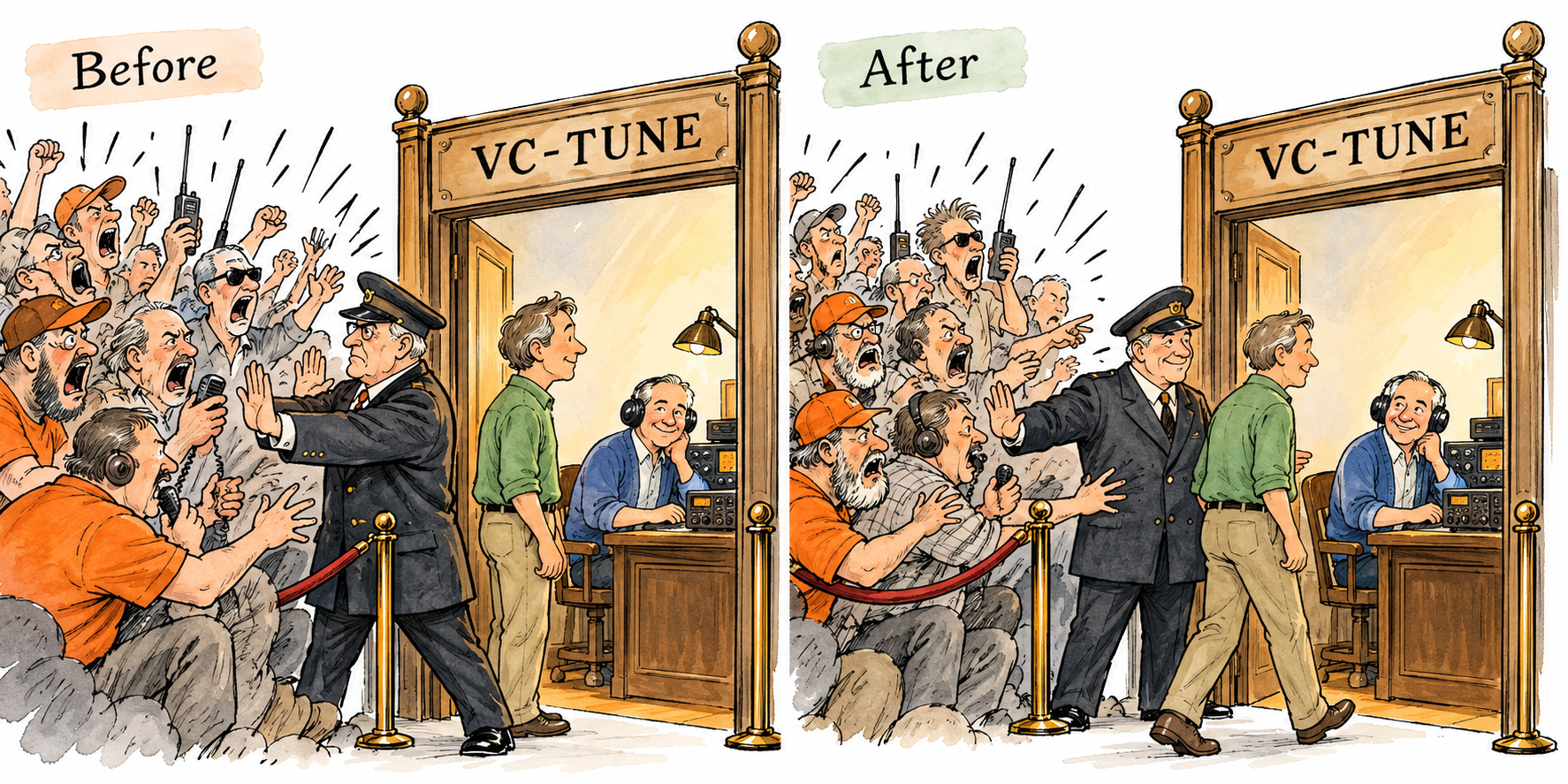
VC-TUNE is a tunable filter near the receiver input. A motor changes a variable capacitor in a resonant circuit, moving the frequency region that passes most readily. Signals farther away are attenuated before reaching later receiver stages. This reduces the burden from strong unwanted signals.
VC-TUNE changes the filter at the radio’s entrance; it does not retune the station or change voice pitch. It is separate from the antenna tuner. Use it on supported HF amateur bands; skip it on the FTDX10 and FT710.
Try it while listening
- Press VC TUNE. It automatically aligns to the operating frequency.
- Turn the MPVD outer ring a small amount one way, then the other. Keep listening to the wanted words.
- Compare VC-TUNE off and on. Keep it when interference falls and speech becomes easier to understand. If everything merely becomes quieter, recenter and compare again.
- Press and hold VC TUNE to recenter its response. Switch it off if it adds no benefit. Return to step 4 with the useful setting retained.
What VC TUNE is doing inside the radio
Your antenna delivers many stations at once, including ones you are not tuned to hear. Those signals still arrive at the receiver. A very strong unwanted station can make the receiver struggle with a weak wanted station, even when you cannot hear that strong station in the speaker. VC-TUNE reduces some of that unwanted energy early in the receiving path.
VC means variable capacitor. A capacitor briefly stores electrical energy; paired with a coil, it forms a circuit that responds most readily around a chosen radio frequency. Think of a swing: pushes at the right rhythm build up motion more readily than pushes at the wrong rhythm. Changing the capacitor changes the circuit’s preferred rhythm. The motor makes that adjustment for you as the radio follows your tuned frequency.
Picture a crowded reception desk. Your quiet visitor is trying to speak while loud groups elsewhere in the building demand attention. VC-TUNE is an adjustable entrance that holds back some of those other groups before they reach the desk. It does not make the quiet visitor louder. It gives the desk less unwanted activity to handle. This is why a weak voice can become easier to understand without its signal meter reading increasing.
When you turn the MPVD ring, you move the filter’s preferred frequency slightly. Imagine sliding that entrance sideways: you are looking for a position that holds back more of a troublesome strong signal while still admitting enough of the wanted one. Go too far and you shut out the wanted station too. Compare the words, then recenter if you lose them.
VC-TUNE selects a neighborhood of radio frequencies, not individual voices. It cannot pull apart two stations sharing the same frequency, and it cannot remove noise that passes through with the wanted signal. WIDTH, SHIFT, NOTCH and CONTOUR do the finer shaping later. Use VC-TUNE to ease the receiver’s workload first, then use those controls to improve what you hear.

Use a separate receiving antenna on the MP
The FTDX101MP can receive on a dedicated antenna while retaining a separate transmitting antenna. Configure ANT 3/RX for receive-only operation and choose the intended receive/transmit routing using the manual. Confirm that routing before using an antenna that must not carry transmit power.
Compare the receiving antenna with your transmitting antenna on the same station. Try locations and orientations away from local noise. Try a lower position if practical, then compare again. Choose by wanted speech relative to noise, not by maximum signal strength.

Try external antenna phasing
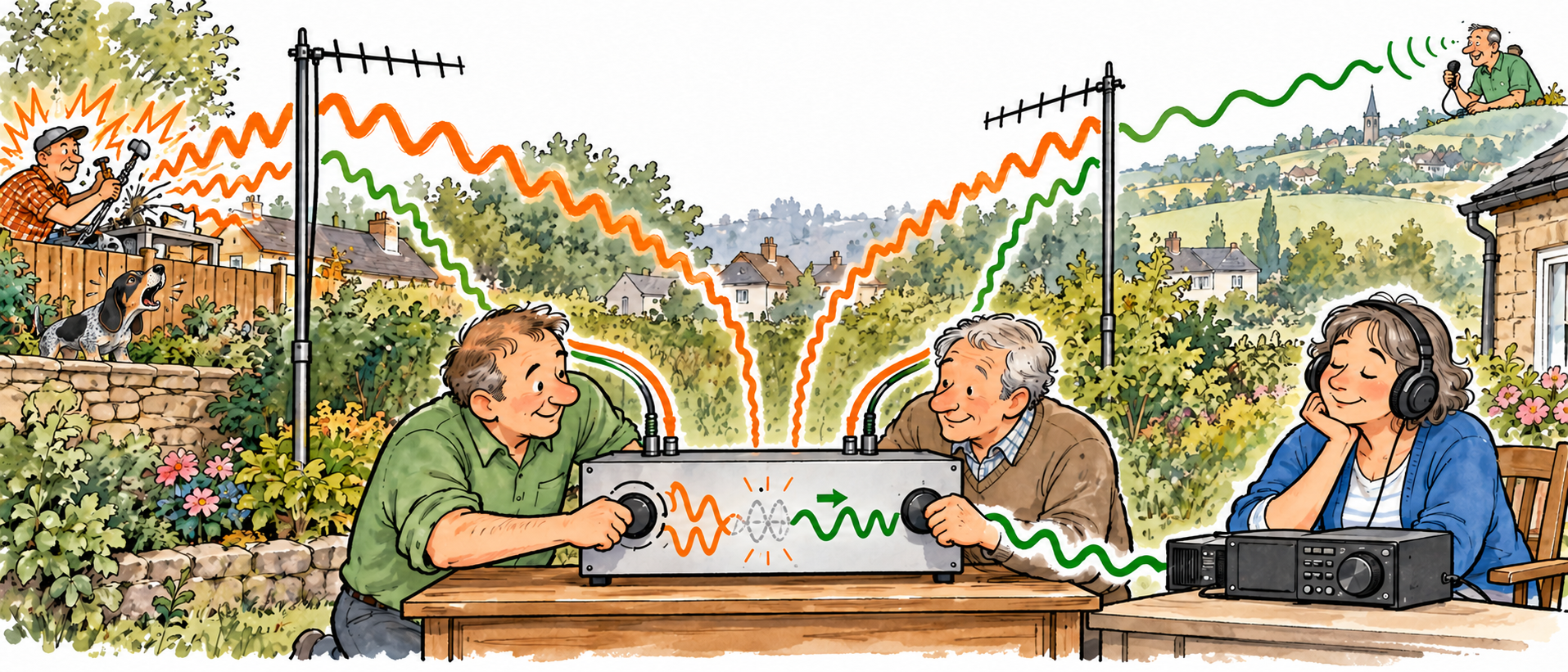
An external phasing unit combines antenna signals with adjustable phase and amplitude to favor a wanted signal or null interference. The MP receive input accepts its output; the radio does not perform that antenna phasing itself.
NJ8M describes two receive-only verticals and an NCC-2 phasing unit feeding the MP receive input, compared with the transmitting antenna using the two receivers. He reports improved reception and reduced fading. Follow the phasing unit instructions for antenna layout, switching and transmit protection.